Sign a document
You do not need an AssinaJá account to sign. The invitation email links straight to the document, and whoever signs through it without signing in signs as a guest.
Open the invitation
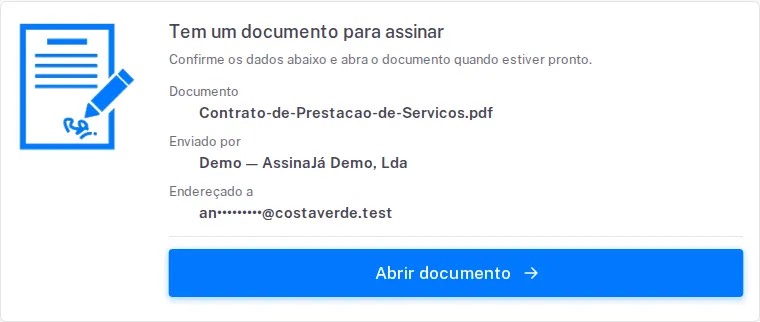
Section titled “Open the invitation”The entry screen is titled You have a document to sign and asks you to confirme os dados abaixo e abra o documento quando estiver pronto — showing Document, Sent by and Addressed to so you can check it is meant for you before opening anything.
Select Open document to continue.
If the invited address already has an account
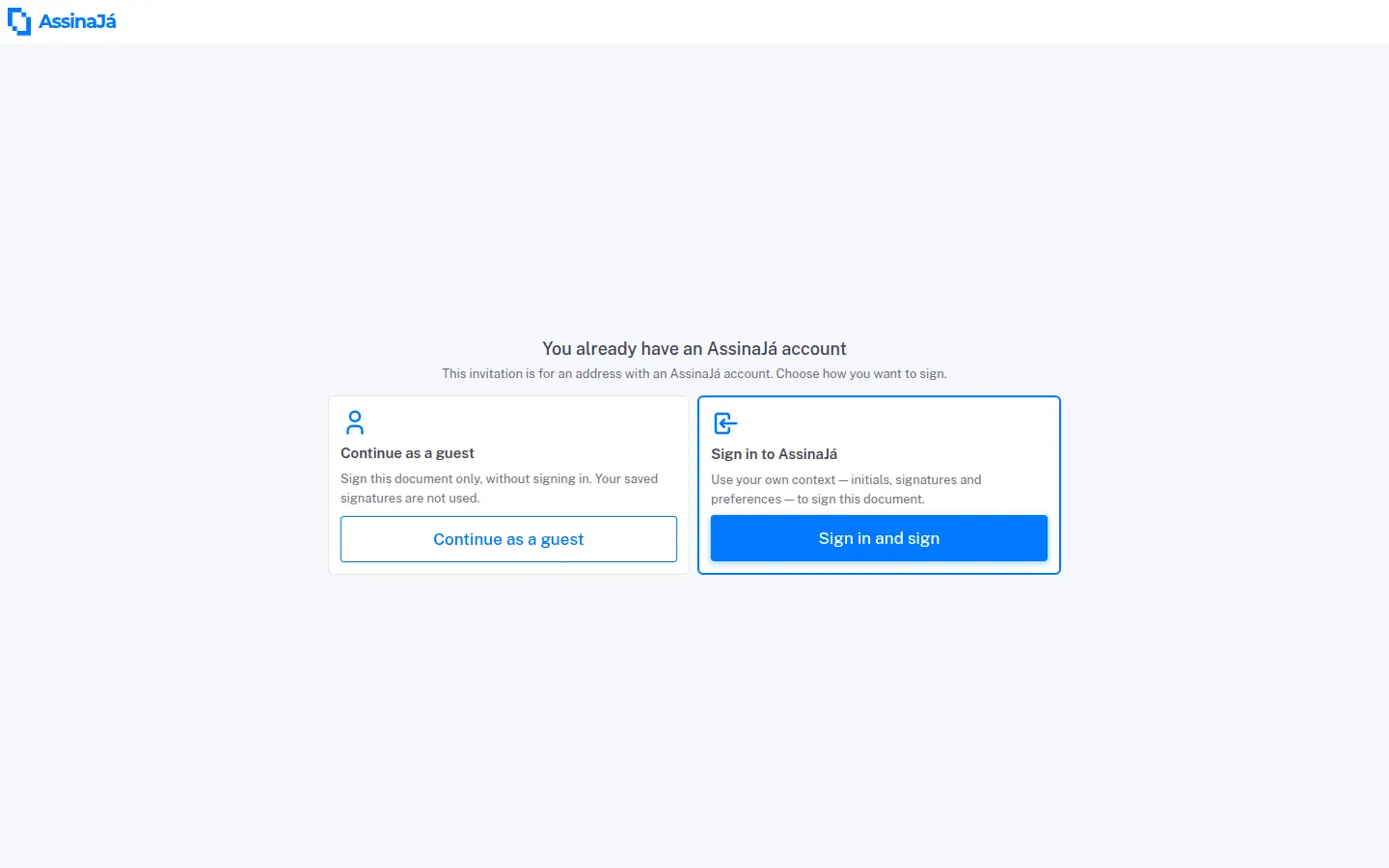
Section titled “If the invited address already has an account”If the invitation went to an address with an AssinaJá account and you are not signed in, the You already have an AssinaJá account screen asks you to choose — “This invitation is for an address with an AssinaJá account. Choose how you want to sign.”:
| Card | What happens |
|---|---|
| Continue as a guest | “Sign this document only, without signing in. Your saved signatures are not used.” |
| Sign in to AssinaJá | “Use your own context — initials, signatures and preferences — to sign this document.” Sign in and sign asks you to sign in and brings you back to this same document. |
If you are already signed in with that address, you do not see this choice: the link takes you straight to the document.
If the link does not work
Section titled “If the link does not work”| Message | What happened |
|---|---|
| You have already signed this document | You have already signed. Nothing more to do — you will receive the final document by email once everyone has signed. |
| This invitation is no longer available | The invitation expired or was replaced. Ask the sender for a new one. |
| Your session has expired | Too much time passed. Reopen the link from your email. |
| Your signature is already in progress | There is an open signing session for this invite — usually yours, in another tab. “Wait a moment and reload the page — the invite is still valid.” |
The state of the sender’s subscription is missing from this list on purpose: a document that went out was paid for when it left, and the invitation opens and signs even if that subscription has since expired.
Unlock the document, if needed
Section titled “Unlock the document, if needed”The sender may have protected it.
SMS code — “We sent you a SMS with a required code to sign the document.” Enter it in the SMS code field. If it does not arrive, Not received SMS? offers Resend SMS. Requesting too quickly is refused with “Já pediu o reenvio de um SMS recentemente.”
Password — “Document protected by password.” Enter it and select Enter. A wrong one gives Invalid Password.
Create your signature
Section titled “Create your signature”The first time you click the zone, the screen asks Start signing? — to draw anything the signing process has to start first. Answer Yes (the same thing the Start Signing button in the top bar does); Not yet closes it and leaves everything as it was.
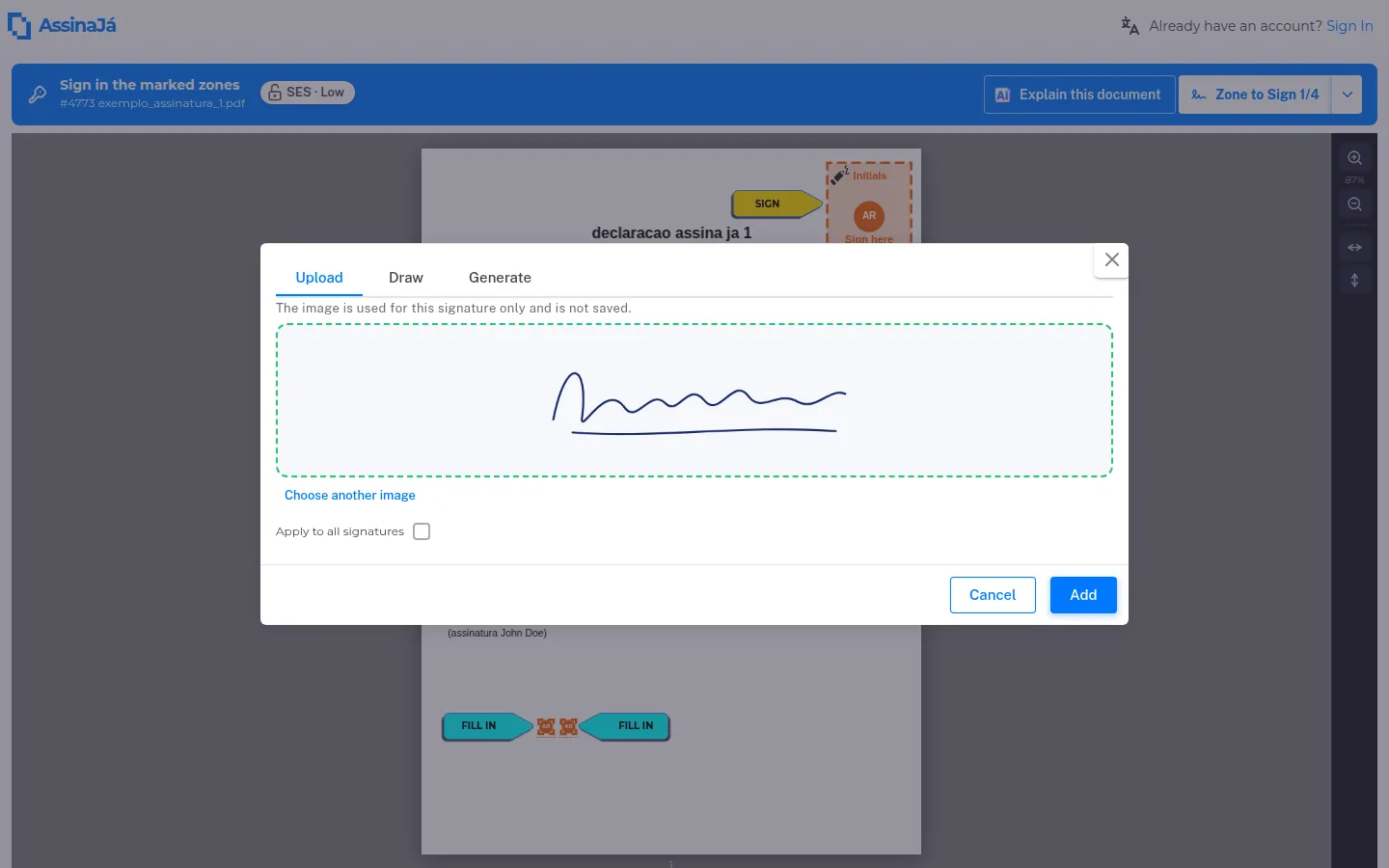
Then the signature panel opens, with three tabs. Draw and Generate are the same for everyone; the first one depends on whether you are signed in:
| Tab | What it does |
|---|---|
| Upload | As a guest: an image of your signature, as a PNG, up to 1 MB. “The image is used for this signature only and is not saved.” |
| The list of your signatures | Signed in: the signatures and initials saved in your profile |
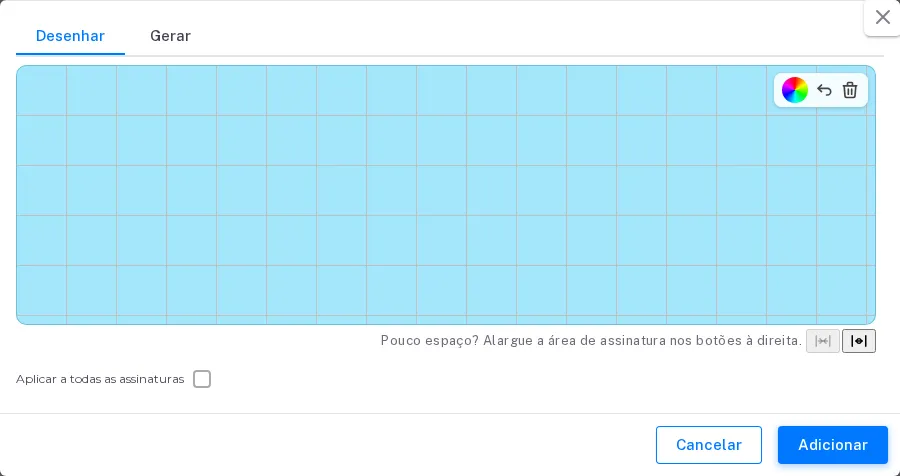
| Draw | Draw it with a mouse, finger or stylus |
| Generate | Type your name (Type your name) and pick a generated style |
As a guest, the panel opens on Draw. Whatever you upload or draw serves this document only — there is no profile to keep it in. To save signatures and reuse them, see Set up your signature.
Apply to all signatures places the same signature in every field at once rather than one at a time. If there is not enough room, the two buttons on the right widen the area. Add closes the panel and places the signature in the zone.
Answer the document’s questions
Section titled “Answer the document’s questions”The sender may have placed questions for you on the document: a text, a date, a number, a pick from a list, options to tick, or a grid. Each unanswered required question has a FILL IN arrow beside it, just as signature zones have a SIGN arrow; optional ones have no arrow.
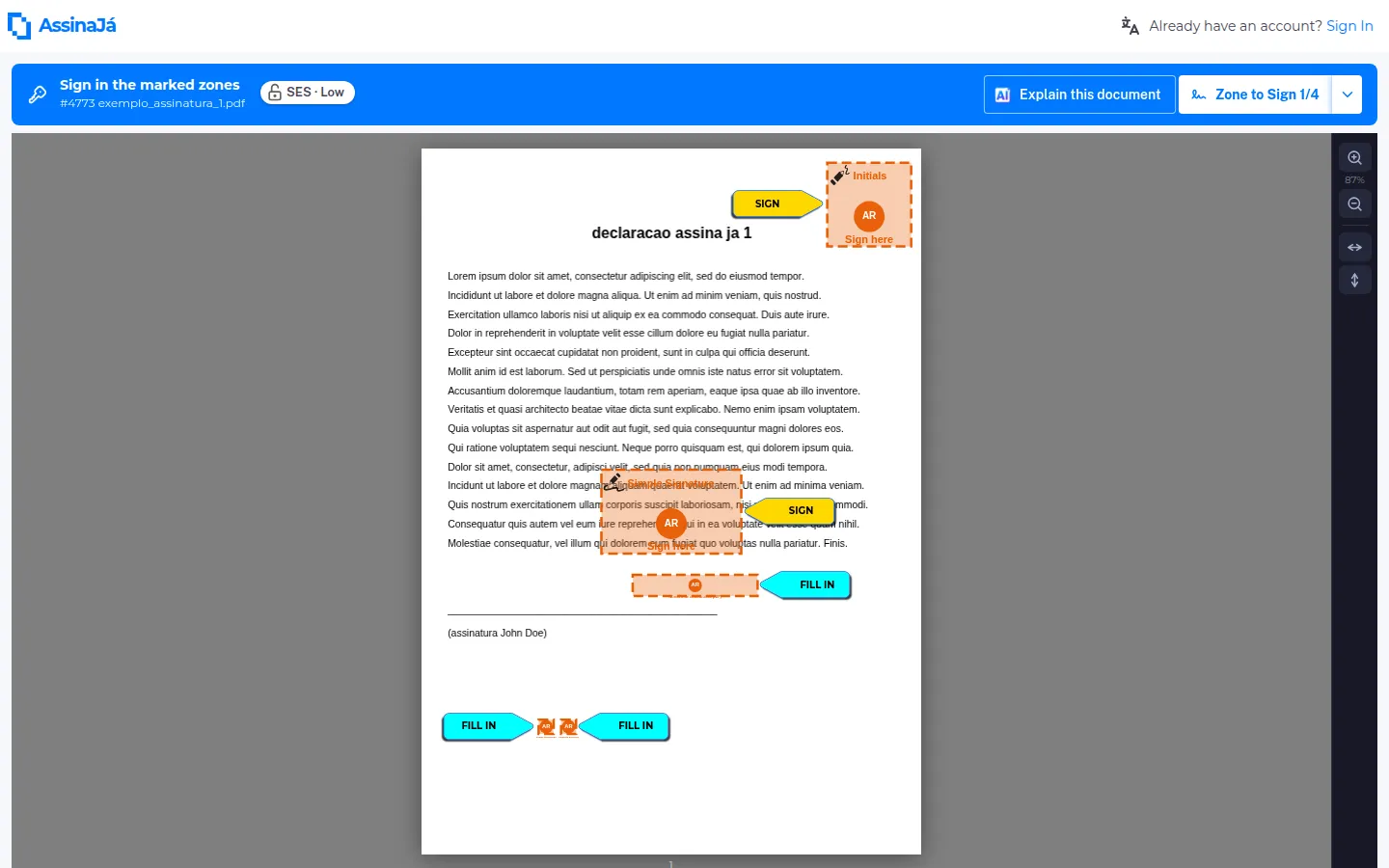
- Options — tap the box to tick or untick it.
- Grid — tap the cell you want to mark.
- Text, date, number and list — the tap opens a dialog with Clear, Cancel and Save. If the field has a format, it is shown before you type — for example, “Format 0000-000.” — and an answer outside it cannot be saved: “Enter the postal code as 0000-000.”
Each answer is saved as soon as you give it. You can change it until you sign; after signing, you cannot.
Required questions must be answered before you sign — with the Chave Móvel Digital too. If one is missing, the screen takes you to the first and warns:
Required questions still unanswered: …
Your answers are written into the document you sign, and the sender also gets them in the completion report. If the document has questions for other signers, you only see their answers once those people have signed.
Select Sign. On success you get Successfully signed.
If fields remain empty, the platform refuses with “Not all signatures were completed.”
Signing with Chave Móvel Digital
Section titled “Signing with Chave Móvel Digital”CMD is always the last of yours, and it requires your visual signatures to be done first:
Before signing with CMD, you must complete the visual signatures (initials and/or simple signature). The CMD signature must be the last one as it seals the document and does not allow any further changes other than additional CMD signatures.
Once a CMD signature is applied the document is sealed. Only further CMD signatures can be added after it.
This is a per-person rule, not a document one: on an all-at-once document several people can sign with CMD at the same time — see Another signer is completing their qualified signature, below.
Signing with your own digital certificate
Section titled “Signing with your own digital certificate”If the zone reads Local Digital Certificate, you sign with the digital certificate you already hold — the Bar Association’s, for example — through the AssinaJá certificate app installed on your computer. See Sign with your own digital certificate and, if you do not have it yet, Install the AssinaJá certificate app.
If you hold several signatures at different positions in the order
Section titled “If you hold several signatures at different positions in the order”On a sequential document, whoever prepared it may have given you a visual signature at one position in the order and the CMD at another, further on. When your turn comes, all of your signatures open at once — the ones at your position and the ones scheduled for later. You do the visual ones, then the CMD, and only then does the turn pass to the next person. You receive one invitation, not one per signature.
Nobody jumps the queue because of this: other people’s signatures at later positions keep waiting.
The waiting screens, and what to do about them
Section titled “The waiting screens, and what to do about them”Signing does not always end in an immediate success screen. There are a handful of situations where the platform makes you wait, asks you to start again, or sends you back to whoever sent the document — and they are worth telling apart.
It is done, but the file is not
Section titled “It is done, but the file is not”After you sign, you may see this under the confirmation:
Done — the signed document will be available in a moment.
Your signature is recorded. What is left is the platform writing it into the PDF. Do not sign again, and you do not have to stay on the page: you receive the final document by email once everyone has signed.
Another signer is completing their qualified signature
Section titled “Another signer is completing their qualified signature”This only happens on all-at-once documents with more than one qualified signature:
Another signer is completing their qualified signature
Yours will start automatically in a moment.
Two people cannot seal the same document at the same time, so the platform makes one wait for the other. A countdown appears and the process restarts on its own when it reaches zero — you do not have to re-enter your phone number or PIN. It is not an error, and there is no point closing the page.
The session expired before the signature was applied
Section titled “The session expired before the signature was applied”The session expired before the signature was applied
“For safety you need to sign again.” Start the signing process over: the previous signature was not applied to the document.
If you give up part-way through the Digital Mobile Key
Section titled “If you give up part-way through the Digital Mobile Key”Closing the Digital Mobile Key assistant part-way releases the document immediately. You can start again straight away, with no wait.
If you close the browser suddenly, rather than closing the wizard, your row can stay busy for a few minutes and a second attempt is refused as busy. Wait, then open the emailed link again.
Your signature is applied but not finalised
Section titled “Your signature is applied but not finalised”Your signature has already been applied to this document and is pending finalisation. Reload the page to complete it — there is no need to sign again.
This happens when the signature has reached the document but the screen does not know it yet. Do not sign again. Reload the page.
The document asks you for two qualified signatures
Section titled “The document asks you for two qualified signatures”Too many qualified signatures on this document
This document asks you for more than one Digital Mobile Key signature, and the Digital Mobile Key signs a document only once. Please contact whoever sent it to you: they will need to cancel it and send you a new one.
There is nothing to do from your side: contact whoever sent you the document, who has to cancel it and send a new one. The rule is in Rules to know.
Signing is no longer possible
Section titled “Signing is no longer possible”If the document was rejected or cancelled before your turn came up, you get this instead of the document:
This document can no longer be signed.
It was rejected or canceled before your turn.
There is nothing to do from your side — the process has ended for everyone. The person who sent it has to create a new one. If the cancellation is happening right then, the message is “The document is being canceled — signing is no longer possible.”
Declining
Section titled “Declining”If you do not want to sign, use Decline to Sign. You are asked to confirm — Decline to sign this document? — and may give an optional reason under Reason (optional).
Once the process has moved past that point you may see “This document can no longer be declined.”
Related
Section titled “Related”- Qualified signatures with CMD — the full process, prerequisites and error messages
- Sign with your own digital certificate
- Signature levels
- Document lifecycle