Two-step verification
Signing in always takes two steps: your password, and a six-digit code emailed to you. It is not a setting you have to switch on — it is already on for every account with a password.
For anyone sending documents with legal weight, the account is worth more than it looks: whoever gets in sees your documents, your contacts and your templates. That is why the second step is not offered as a preference.
The code screen
Section titled “The code screen”Once the password is right, the application shows Confirm it’s you, with “We sent a 6-digit code to” and your address.
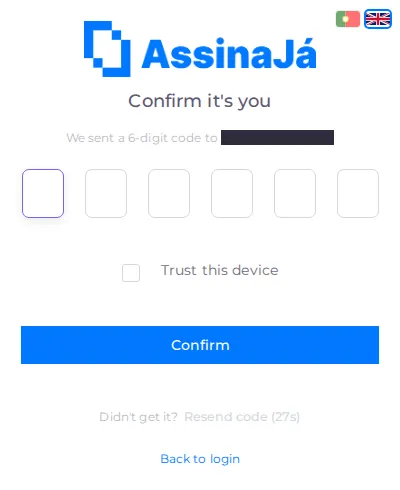
| Element | What it does |
|---|---|
| Six boxes | One per digit. Pasting the code fills them all |
| Trust this device | In this browser, the code stops being asked for next time |
| Confirm | Checks the code and signs you in |
| Didn’t get it? → Resend code | Sends a fresh code |
| Back to login | Start again with a different account |
Resending has a 30-second wait: during it the button reads “Resend in {n}s” and does nothing. That is a brake against repeated attempts, not a fault.
Trusting a device
Section titled “Trusting a device”Trust this device stores the decision in that browser: next time, the password is enough.
Use it on your own computer and your own phone. Do not use it on shared machines or in private windows — in a private window the mark disappears with the window, which spends the code and saves you nothing.
You cannot turn two-step verification off
Section titled “You cannot turn two-step verification off”There is no switch. Not for you, and not for your organisation’s Owner.
Verification is turned on when the account is created, and set again whenever the password is changed or recovered — three separate paths that guarantee the same state.
There is a single exception, reserved for testing and incidents: a Master user can turn it off for one named account from the console. Turning it off requires a written reason, is recorded as a warning, and marks that account’s row for as long as it lasts. Nor is it permanent: the next password change or reset turns it back on.
When the code does not arrive
Section titled “When the code does not arrive”In the order that resolves it fastest:
- Check spam. The most common cause, and the quickest to rule out.
- Check the address shown on screen. An old account with an old email sends the code somewhere you no longer read.
- Wait the 30 seconds and resend.
- Check that the mailbox accepts the sender. On company accounts, a filter may be holding automated mail.
If it still does not arrive, the problem is email delivery, not the account. Speak to whoever administers your organisation.
Related
Section titled “Related”- Sign in — where the code is asked for
- Change your password — changing it turns two-step verification back on
- Delete your account or download your data