Deliver a file to an assistant
When an AI assistant connected through MCP needs a document from you, it cannot reach into your computer. Instead it gives you a delivery link. You open it, upload the file, and the assistant carries on.
Open the link
Section titled “Open the link”The page is titled Deliver a file and tells you where the file is going. There are two sentences, and which one you see depends on whether the request carried the name of whoever made it:
{assistant} requested this file to create a signature process in {organisation}.
This file will create a signature process in {organisation}.
The second is what you get when the link came from the API — the
POST /api/public/v1/Uploads/links request carries no client name. An assistant
connected over MCP identifies itself, and then you see the first. Underneath, in
quotation marks, is the purpose whoever asked wrote.
You have to be signed in first — “This link delivers a file to one of your organizations. We need to know it is you.”
Upload the file
Section titled “Upload the file”Drag it onto Drag the file here, or use Choose from your computer. Accepted: PDF ou Word, up to the stated size limit.
Then Deliver. When it lands you get File received, and “You can return to the conversation to continue.”
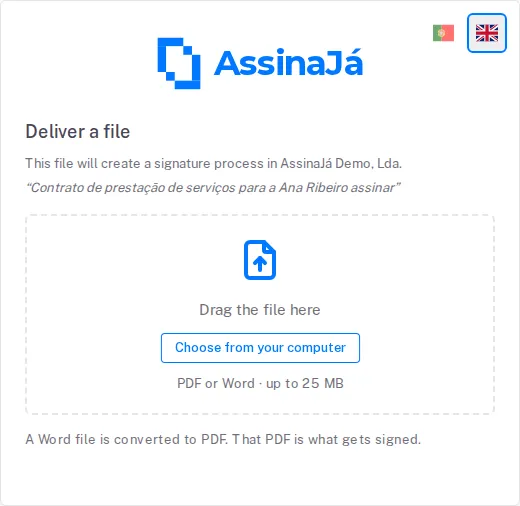
Word files are converted
Section titled “Word files are converted”A Word file is converted to PDF. That PDF is what gets signed.
And after conversion:
The Word document was converted to PDF. Review the PDF before going on — it is what will be signed.
Check the converted PDF rather than assuming it matches. Layout can shift in conversion, and the PDF is what people sign — the original Word file is not part of the signed record.
If it fails
Section titled “If it fails”| Message | Meaning |
|---|---|
| O ficheiro é demasiado grande. | Over the limit shown on the page |
| The file could not be uploaded. Please try again. | Upload failed; the link is still valid |
Preparing it yourself instead
Section titled “Preparing it yourself instead”You do not have to let the assistant continue. From the pending request you can take over:
- Prepare and send it here — open the normal wizard with this file
- Resume preparation — go back to one you already started
- “or return to the conversation and let the assistant continue.”
Taking over is the safer choice when the document matters — you see the signers and the signature levels before anything is sent. See Send a document for signature.
If the request belongs to another organisation
Section titled “If the request belongs to another organisation”This request belongs to {organisation}, but you are working in another organization. Preparing the document here requires switching — your lists and quotas become those of {organisation}.
Choose Switch to {organisation} and continue, or Not now.
When it is done
Section titled “When it is done”Document sent — “O processo de assinatura n.º {id} foi criado e os signatários foram notificados.”
Note the process number. It is how you find the document in the list.
If you open a link for a file already handed over, you get Ficheiro já recebido with the filename — that is the one-use rule, not an error.
Related
Section titled “Related”- Configure organisation policies — the setting that makes assistant-created documents start as drafts
- Create an API key — how assistants connect