Change your password
If you know the current password
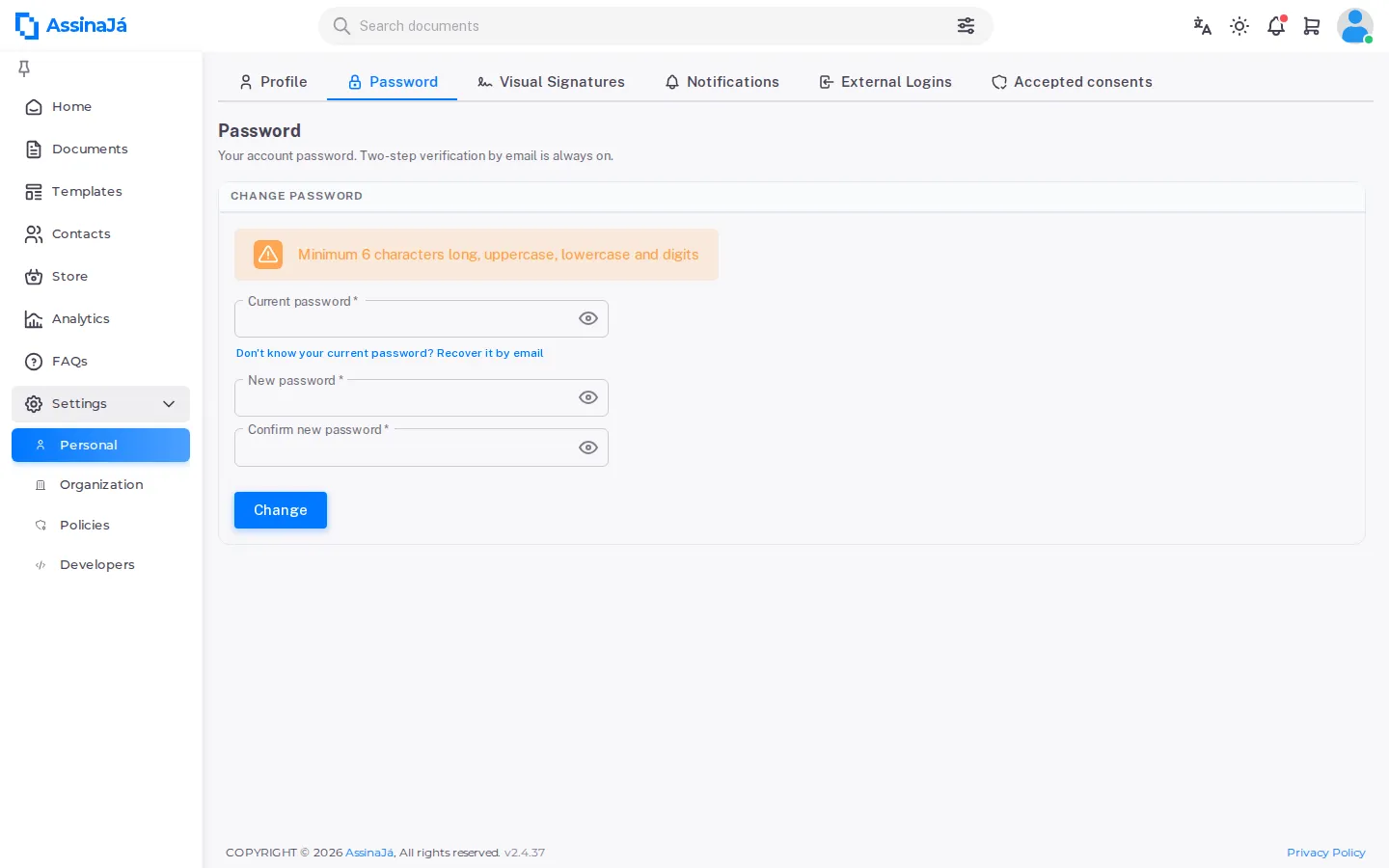
Section titled “If you know the current password”Under Settings → Personal, open Password. The tab describes itself as “Your account password. Two-step verification by email is always on.” — the password is all that changes here.
The card is called Change Password and asks for three fields:
| Field | |
|---|---|
| Current password | the one you use today |
| New password | the new one |
| Confirm new password | again, to catch typos |
Then Change. If the last two do not match: “Passwords must match”.
If you cannot remember the current one, you do not have to leave the screen: Don’t know your current password? Recover it by email sends the reset message without interrupting what you were doing, and confirms with “We have sent you an email to reset your password.”
The rules
Section titled “The rules”Minimum 6 characters long, uppercase, lowercase and digits
Concretely: at least 6 characters, with at least one uppercase, one lowercase and one digit. Special characters are not required.
If you do not know the current password
Section titled “If you do not know the current password”On the sign-in screen, choose Forgot Password?
Enter your email and we’ll send you instructions to reset your password
Enter the email and Send reset link. The confirmation is deliberately vague:
If your account exists, you will receive an email with instructions to reset your password
The “if” is intentional: the page answers the same for an address with an account and one without, so nobody can discover who has an AssinaJá account. Do not read it as confirmation that the address is right — if nothing arrives, check you typed the address you registered with.
The email carries a link to Reset password. Set the new one, Reset, and you get:
Your password has been reset. Please click here to log in.
If you open the reset page without the emailed link, you get “A code must be supplied for password reset.” — the code travels in the address, so follow the link rather than copying it in pieces.
If you signed up through an external provider
Section titled “If you signed up through an external provider”An account created through an external sign-in (Microsoft or Google) may have no password of its own. In that case the card is Set password, and asks only for the new one — there is no current password to confirm.
While the account has no password, its only external login under External Logins cannot be removed: the button is disabled, because it is your only way in. Set a password here and you can remove it. From then on, signing in with email and password also asks for the verification code.
Related
Section titled “Related”- Sign in
- Two-factor authentication — the protection that adds the most
- Delete your account or download your data