Use a template
A template is a document you have already prepared once — its fields and its signer positions are saved, so sending the same kind of document again means filling in a short form rather than repeating the whole wizard.
Create a document from a template
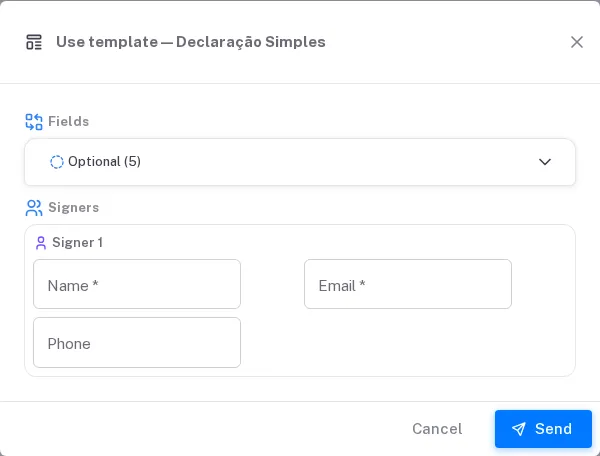
Section titled “Create a document from a template”Open the template and choose Use template. You are asked for two things.
Fields — the values that vary between documents. Required ones are marked Required; the rest appear under Optional. Leaving a required field empty is refused with “Please fill in the required fields.”
Signers — for each signer the template expects, supply Name, Email and Phone.
If the template has fields for the signer to fill in, you do not answer them here: each signer answers them, on the document, when signing. See Fields the signer fills in when signing.
Then select Send. On success you get:
Document created and sent for signature.
On a free organisation that has not confirmed its mobile number yet, Send first opens One more step before sending; once the number is confirmed, the document is created and sent with the values you already typed. See Confirm your mobile number.
Advanced data
Section titled “Advanced data”Templates can carry more than flat text fields. Advanced data (JSON) accepts a JSON object for the cases a plain field cannot express:
Arrays for repeats, true/false for conditions and images (base64/URL).
So a list drives a repeated block, a boolean shows or hides a section, and an image can be supplied inline or by URL. Malformed input is rejected with “The data JSON is invalid.”
Inspecting a template
Section titled “Inspecting a template”Template details shows what a template contains before you commit to using it:
| General | Nome, Descrição, Estado |
| Criado por, Criado em, Last modified on | |
| Automatic fields | The fields it will ask you to fill, and which are Required |
| Signers | The signers it expects, and the page each signs on |
| Template ID (API) | The identifier used to drive this template from the API |
Download template downloads the underlying file.
The Template ID (API) is worth knowing about even if you never write code: it is how an integration refers to this exact template.
Related
Section titled “Related”- Send a document for signature — the full wizard, when no template fits
- Signature levels