Create a template
A template is built from a DOCX file. You mark it up once with placeholders, and every document generated from it fills those placeholders in.
Mark up the DOCX
Section titled “Mark up the DOCX”Two kinds of marker, and the difference matters:
Only one .docx file. Use
{{Field}}markers for data and{{AssinaJa_N_Type}}for signatures.
{{Campo}} — a data field. Whatever you name it becomes a field you fill in
when generating a document. Use as many as you like.
{{AssinaJa_N_Tipo}} — where a signature goes. N is the signer number, so
all markers with the same number belong to the same person.
| Marker | Places |
|---|---|
{{AssinaJa_1_SIGNATURE}} |
Signer 1’s signature |
{{AssinaJa_1_INITIALS}} |
Signer 1’s initials |
{{AssinaJa_1_CMD}} |
Signer 1 signing with Chave Móvel Digital |
{{AssinaJa_1_CMDSCAP}} |
Signer 1 signing with CMD + professional attributes |
{{AssinaJa_1_LDC}} |
Signer 1 signing with their own Local Digital Certificate |
{{AssinaJa_2_SIGNATURE}} |
Signer 2’s signature |
Signature markers are never treated as data — they pass through untouched and become signature zones on the finished document.
Fields the signer fills in when signing
Section titled “Fields the signer fills in when signing”A third kind of marker puts a box on the document that the signer fills in
at the moment of signing — unlike {{Field}}, which is filled in by whoever uses
the template.
| Marker | Places |
|---|---|
{{AssinaJa_1_IN_Address}} |
A box signer 1 fills in: text, date, number or a choice list |
{{AssinaJa_1_IN_Condition_Good}} |
The Good option of the Condition question, for signer 1 to tick |
{{AssinaJa_1_IN_Condition_Poor}} |
The Poor option of the same question |
The N is the signer who fills it in, as in signature markers. The key
(Address, Condition) identifies the question: it starts with a letter and
holds only letters and digits — no _, because _ separates the key from an
option’s value. Every box with the same key and a different value is an
option of the same question.
The DOCX only says where the box goes. What it asks — Question, Type, Mandatory or Optional, Single choice or Multiple choice for options, the choices of a list — is set in step 2, under Fields for the signer to fill in.
Three rules:
- Each marker appears only once in the DOCX. A repeated marker is refused when the template is saved; for two boxes, use two keys or two values.
- There is no matrix in DOCX templates. Type offers Text, Date, Number and Choice list; the matrix only exists when preparing a document.
- Whoever fills in also signs. Signer
Nneeds a signature or initials marker in the same DOCX.
Type these markers by hand, with AssinaJa_ written exactly like that. Unlike
signature markers, here the upper and lower case of the prefix matter.
Word mail-merge fields
Section titled “Word mail-merge fields”A DOCX that already uses Word’s own mail-merge fields (MERGEFIELD) works too:
on upload, each one becomes a {{FIELD}} marker, and the converted file is the
one stored. The name is adjusted to the marker rules — no accents, upper case,
and a single _ in place of spaces and other characters: Preço_Imóvel becomes
{{PRECO_IMOVEL}}.
Each renamed field appears under Warnings in step 2 — the new name is the
one you fill in when using the template. Two Word names that produce the same
marker become one field. A MERGEFIELD inside another Word field (an IF, for
example) is left as it is and flagged: replace it with a {{...}} marker.
Build the template
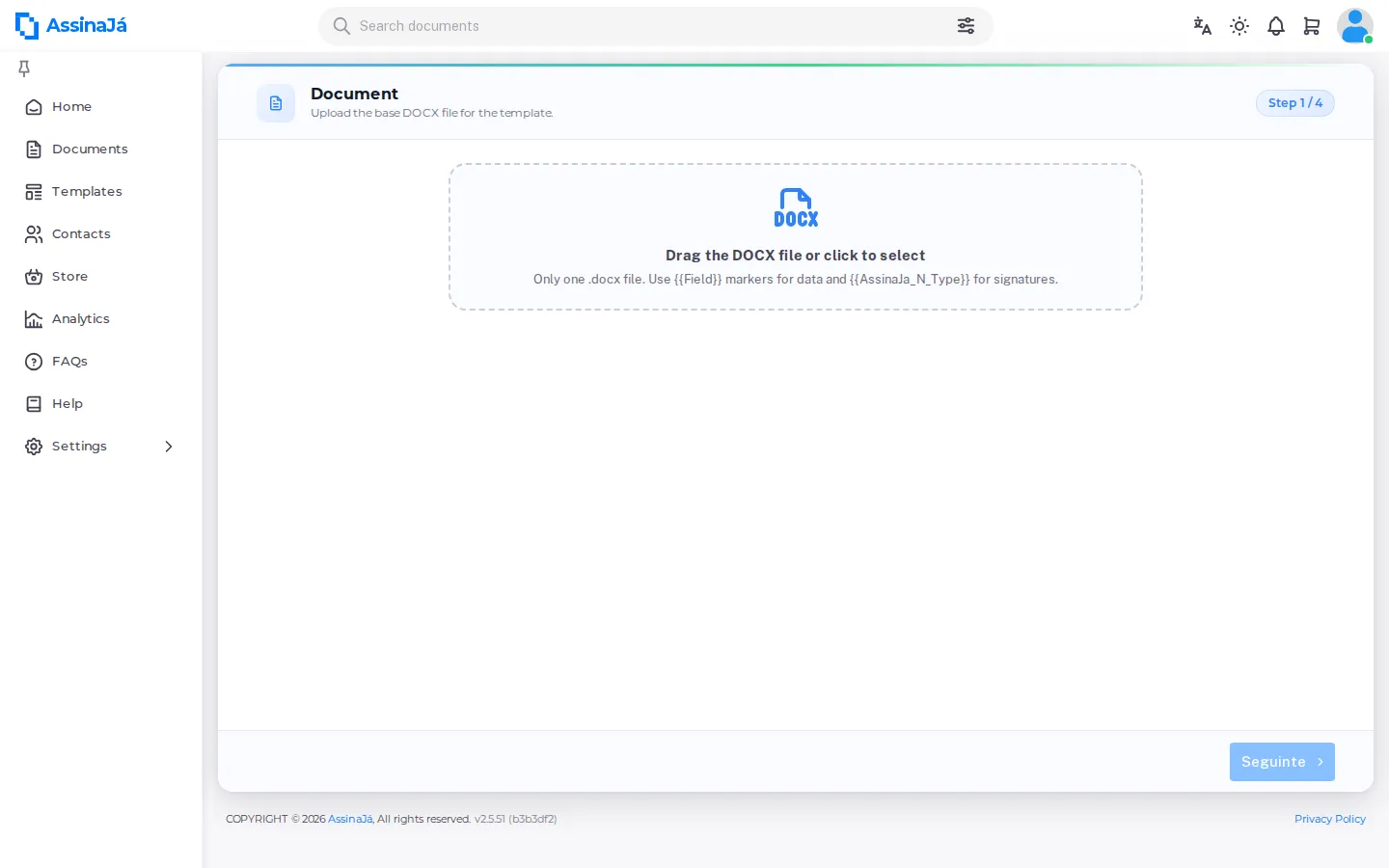
Section titled “Build the template”Choose Template to start. There are four steps:
| # | Step | What you do |
|---|---|---|
| 1 | Document | Upload the base DOCX file for the template. |
| 2 | Fields | Review the fields detected in the document. |
| 3 | Preview | Adjust the signature zones over the document. |
| 4 | Review | Set the name and save the template. |
Drag the file in, or click to pick it — Drag the DOCX file or click to select. After analysis you get a count of MailMerge fields and Signature fields found. Check those numbers: they are the quickest way to spot a mistyped marker.
Finish with Save template, or Save and Exit to stop and come back to it.
Each step has, next to the step counter, the help button for that step.
If the upload is rejected
Section titled “If the upload is rejected”| Message | Cause |
|---|---|
| Only DOCX files are allowed. | Wrong file type — DOC and PDF are not accepted |
| Only one DOCX file can be uploaded. | More than one file was picked |
| Multiple files cannot be uploaded. | The same, from a multi-file drop |
| Folders cannot be uploaded. | A folder was dropped instead of a file |
| The template file is missing. | The step was submitted with no file |
| The file contains macros, which are not allowed. | A macro-enabled document |
| The file exceeds the maximum allowed size. | Too large |
| The DOCX file is not valid. | The file is corrupt or not a real DOCX |
| Could not analyze the DOCX file. | The analysis could not read the contents |
| The template has an invalid AssinaJá field. | A marker that does not match the expected form |
| The template refers to a signer that does not exist. | An AssinaJa_N_… marker whose N has no signer |
| A required template field is missing. | A required merge field was left out |
| The DOCX could not be converted to PDF. | The conversion step failed |
| The position of an AssinaJá field could not be located in the document. | The marker was found but not placeable |
| The template no longer exists. | It was deleted while you were working on it |
| Each signer may have at most one qualified signature marker (CMD or CMDSCAP). Fix the DOCX and upload it again. | The same N carries two qualified markers — see below |
One certificate marker per signer
Section titled “One certificate marker per signer”{{AssinaJa_N_SIGNATURE}} and {{AssinaJa_N_INITIALS}} repeat as often as you
like, but the same N can carry only one {{AssinaJa_N_CMD}}, one
{{AssinaJa_N_CMDSCAP}} or one {{AssinaJa_N_LDC}}. A DOCX that breaks this
is refused at upload, and nothing is stored:
Each signer may have at most one qualified signature marker (CMD or CMDSCAP). Fix the DOCX and upload it again.
The message mentions only “CMD or CMDSCAP”, but it is also the one you get when
the conflict involves an LDC. Through the public API the refusal comes back as
400 { "code": "MULTIPLE_QUALIFIED_MARKERS_FOR_SIGNER" }, with the signer number
in the message. The reason for the rule is in
Rules to know.
If no markers are found
Section titled “If no markers are found”No substitution fields detected. Add
{{Field}}markers and upload again.
No signature fields detected. Add
{{AssinaJa_N_Type}}markers and upload again.
Both mean the same thing in practice: the markers are not where the analyser looked. The usual cause is Word having split a marker across formatting runs — retype it in one go, without changing font or style mid-marker, and re-upload.
Under each of them, “To see the format of the markers to include, check the online help” here brings you to Mark up the DOCX.
If the fields to fill in are badly defined
Section titled “If the fields to fill in are badly defined”Step 2 warns, above the questions, about whatever stops the template from being saved — for example ““{question}”: the list has no choices.” or ““{question}”: only one choice can be preselected.” When a document is generated from a template with a badly defined question, the refusal is:
Some fields for the signer to fill in are badly defined in the template (question, options or choices). Fix them in the wizard and try again.
UNVERIFIED: when it is the server that refuses on save — a repeated marker, for example — the screen shows the server’s technical message, in English, instead of a translated text. It is logged as an open question.
Managing templates
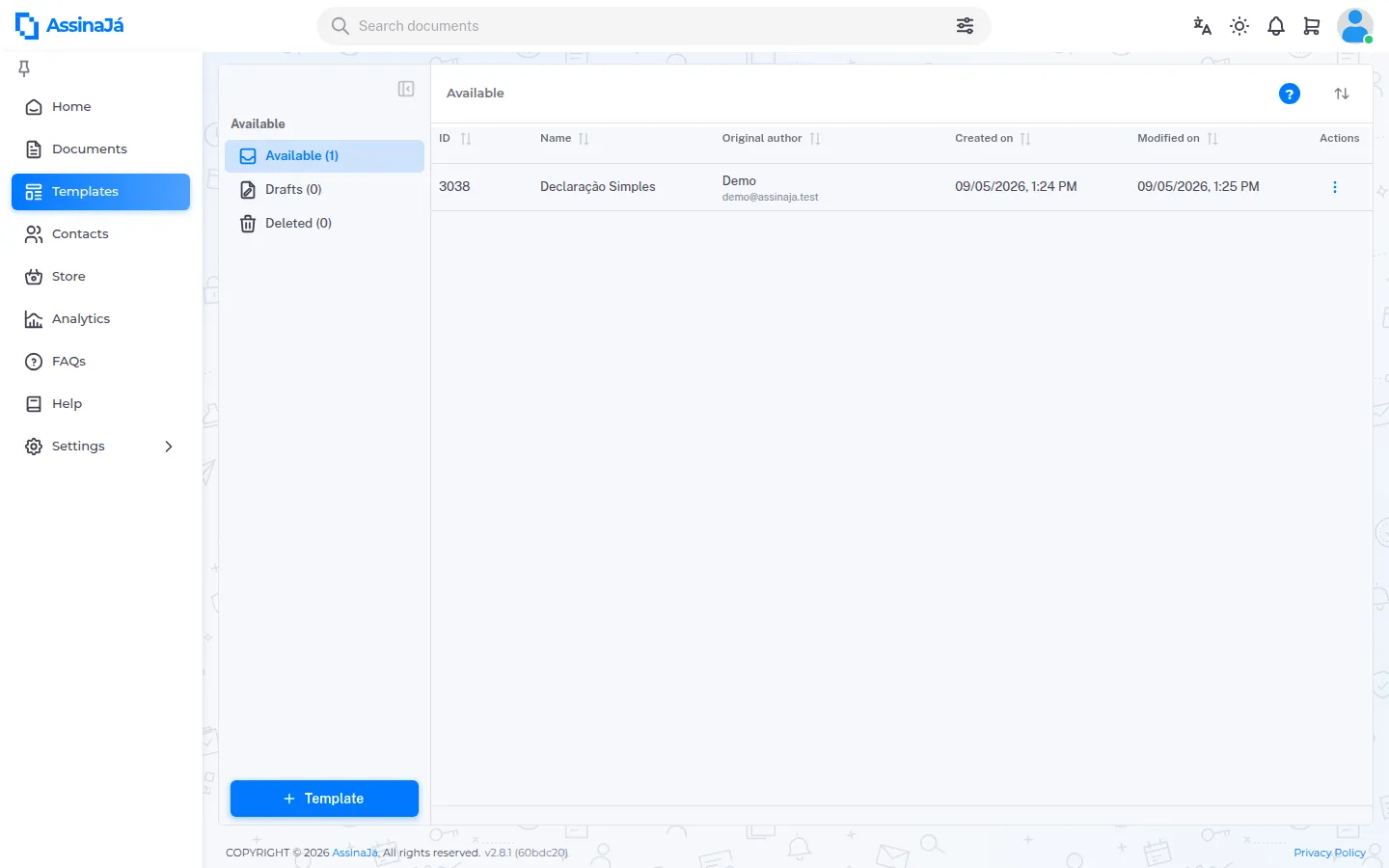
Section titled “Managing templates”The list has three views — Available, Drafts and Deleted — with columns Name, Author, Original author, Folder, Favorite and ID. Each view shows its total in brackets, for example Available (12). Organisations that can publish in the catalogue get a fourth view, In Catalog — see below.
Each row’s menu has these actions:
| Action | |
|---|---|
| Use template | Create a document from it — see Use a template |
| Info | See the fields, the signers and the Template ID (API) — see Inspecting a template |
| Edit | Change the template |
| Publish in catalog / Remove from catalog | Only in organisations with a catalogue — see below |
| Download template | Get the source DOCX back |
| Delete | Remove it |
Edit only appears to people with permission to manage templates. Without it, a template can be read and used, but not changed — see Roles and permissions.
In the Deleted view the menu changes: the only action is Move to the Templates folder, which brings the template back.
Original author is worth noticing: a template that came from another subscription keeps a record of who built it, not just who holds it now. If that originating subscription has lapsed, actions on the template stop with “Action failed. The subscription from which this template originated has expired.”
The list has no action to share or send a template to a colleague.
Publish a template in the catalogue
Section titled “Publish a template in the catalogue”In an organisation on the Enterprise plan, a template can be made available to other organisations through the template catalogue:
Other organizations can then use this template through an API key with access to the template catalog.
You publish template by template, in two ways: with the Publish in catalog switch in step 4 of the wizard, or with Publish in catalog in the row’s menu. No template is published by default. The In Catalog view shows the ones you have published, and Remove from catalog takes them out.
- Only a template from Available can be published: a draft or a deleted template does not go into the catalogue.
- Publishing is for the template’s author; anyone who manages templates can remove one.
- Deleting a template takes it out of the catalogue, and bringing it back does not publish it again.
If the template is saved but the publication fails, step 4 warns “Template saved, but the catalog publication could not be changed.” — try again from the row’s menu.
What the catalogue looks like from the caller’s side is in The template catalogue scope.
Related
Section titled “Related”- Use a template — generating documents from one
- Signature levels — what CMD and CMDSCAP mean