Manage your personal settings
Settings → Personal is your account, not your organisation’s. Nothing you change here affects your colleagues.
| Tab | What it decides |
|---|---|
| Profile | Name, contact, identification and photo; download your data or delete the account |
| Password | Your account password — see Change your password |
| Visual Signatures | The mark that appears on documents |
| Notifications | What reaches you by email and in the browser |
| External Logins | Microsoft or Google accounts linked to this one |
| Accepted consents | The terms you accepted, and when |
Three of these have a page of their own: Change your password, Set up your signature and Review the terms you accepted. The other three are below.
Profile
Section titled “Profile”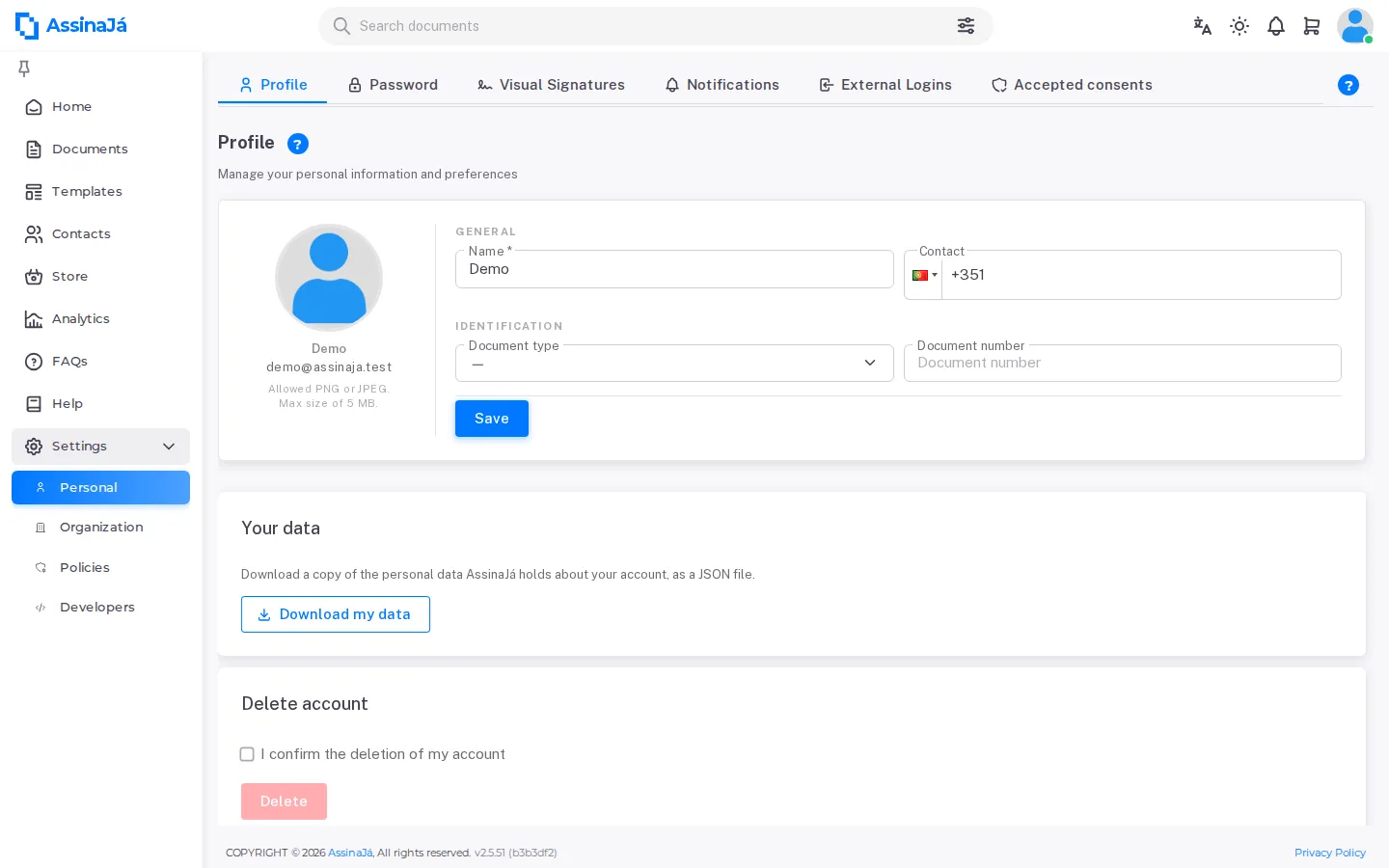
The tab has three cards: your personal details, Your data and Delete account.
In the first, below the photo, you see your name and your email — the email is not changed here. The rest is split into two sections:
| Section | Fields |
|---|---|
| General | Name (required) and Contact |
| Identification | Document type — National ID Card or Passport — and Document number |
Save applies the changes. The name is required — “The name is required” — and it is what signers see as the sender of your documents. Identification is optional.
The contact has to be validated
Section titled “The contact has to be validated”A phone number does not count as validated just for being typed in. As soon as the Contact differs from the number already confirmed, a Validate button appears beside it and opens Confirm your mobile number: the platform texts you a code — “We sent the code to {number}. It is valid for {n} minutes.” —, you type the 6-digit code and Confirm. Only then does the contact become “Contact validated successfully”, and the confirmed number is the one now in the field.
Asking for another SMS too soon answers “We sent a code a moment ago. Wait a little before requesting another.”; a number that already belongs to another account, “This number is already linked to another account. If it is yours, contact us.” The dialog’s other messages are under Confirm your mobile number — it is the same dialog a free organisation sees before its first send.
Upload photo accepts PNG or JPEG, up to the size the screen states. Any other type is refused with “The image type is not allowed, only PNG or JPEG”. Remove goes back to the default avatar.
The photo is for the interface. It does not appear on signed documents — that is your visual signature.
Your data and Delete account
Section titled “Your data and Delete account”Below come Your data, with Download my data, and Delete account. What each one does, and what deletion removes and keeps, is in Delete your account or download your data.
Notifications
Section titled “Notifications”A table with one row per notification type and two destination columns: EMAIL and BROWSER. Rows are grouped into four categories — Documents, Team and sharing, Subscription and billing, and Other.
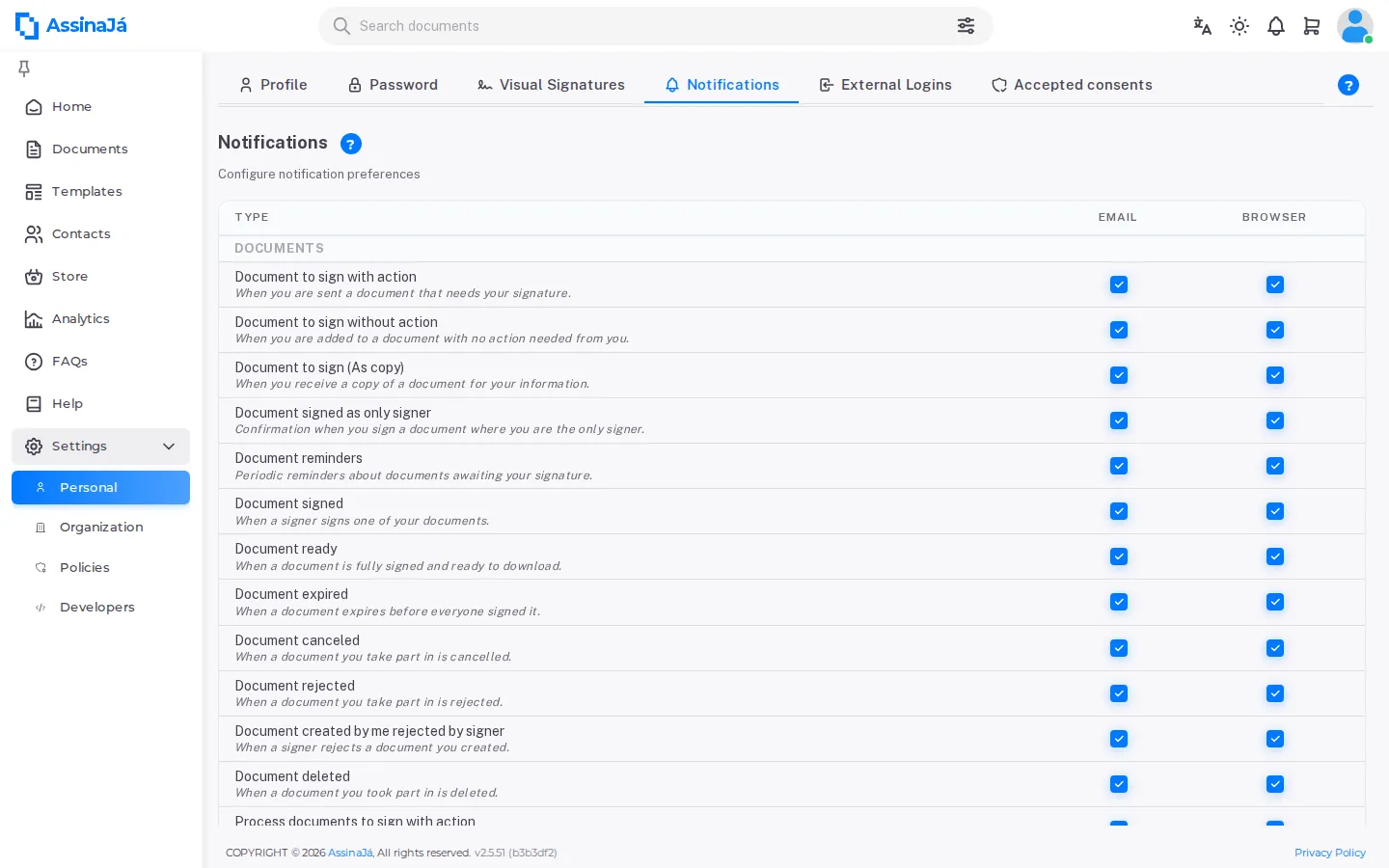
Save applies the changes and confirms with “Settings saved successfully”.
External Logins
Section titled “External Logins”Lists the external accounts linked to this one. With a live link:
You can sign in to AssinaJá with your {provider} account
With none, the tab says “There are no records to display”. Removing asks first — “Are you sure you want to delete?” — and is reversible: you link the account again by signing in with Sign in with Microsoft or Sign in with Google using the same email.
If the account has no password, its only external login cannot be removed — see If you signed up through an external provider.