Complete your organisation's data
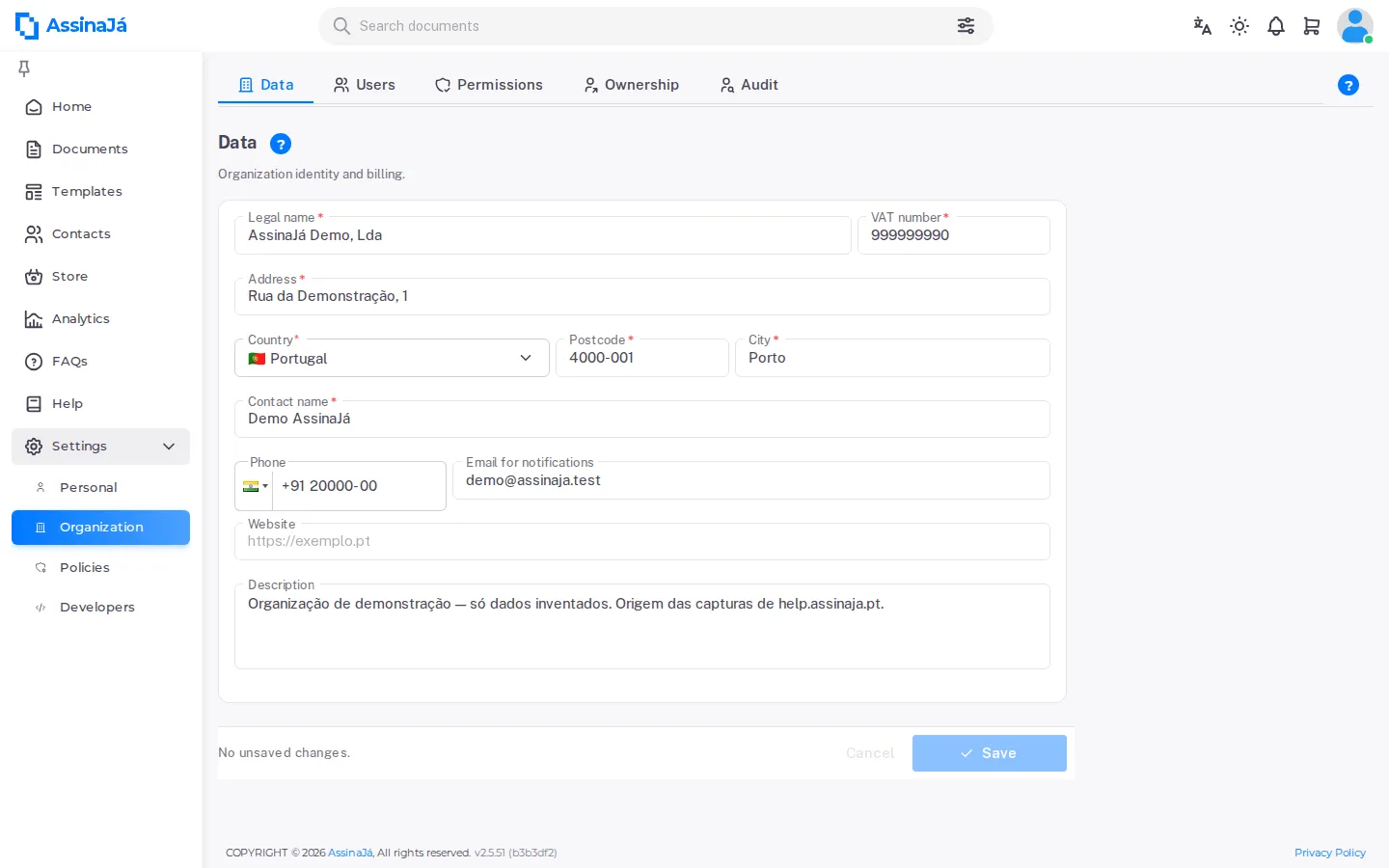
Settings → Organization → Data — “Organization identity and billing.”
These fields are not platform paperwork: they are what gets printed on the invoice. A wrong address here is a wrong invoice, and a wrong invoice is fixed with a credit note.
The fields
Section titled “The fields”| Field | Required | |
|---|---|---|
| Legal name | ● | The registered name, not the trading name |
| VAT number | ● | See Getting started for the format |
| Address | ● | The billing address |
| Postcode | ● | |
| City | ● | |
| Country | ● | |
| Contact name | ● | The person responsible for billing |
| Email for notifications | Where billing notices go | |
| Phone | ||
| Website | ||
| Description | For you only; it goes nowhere else |
The seven required ones are marked on screen with a red asterisk.
The screen tells you where you stand
Section titled “The screen tells you where you stand”Rather than letting you find out on save, the card says so up front:
| State | |
|---|---|
| “{n} required fields missing” | Not saveable yet |
| “All filled in. Ready to save.” | Just press Save |
| “No unsaved changes.” | Everything is stored |
After saving: “Saved.”
Who can change it
Section titled “Who can change it”Only people with the Manage billing permission — by default, the Owner and the Administrator. For everyone else the card is read-only:
Only Owners and Admins can change billing details. You can view them below.
The home screen reminds you
Section titled “The home screen reminds you”While data is missing, the top of the home screen shows a notice:
Your organization’s billing details are incomplete (name, VAT number, address, postal code, city, country and billing contact). They’re needed to issue invoices.
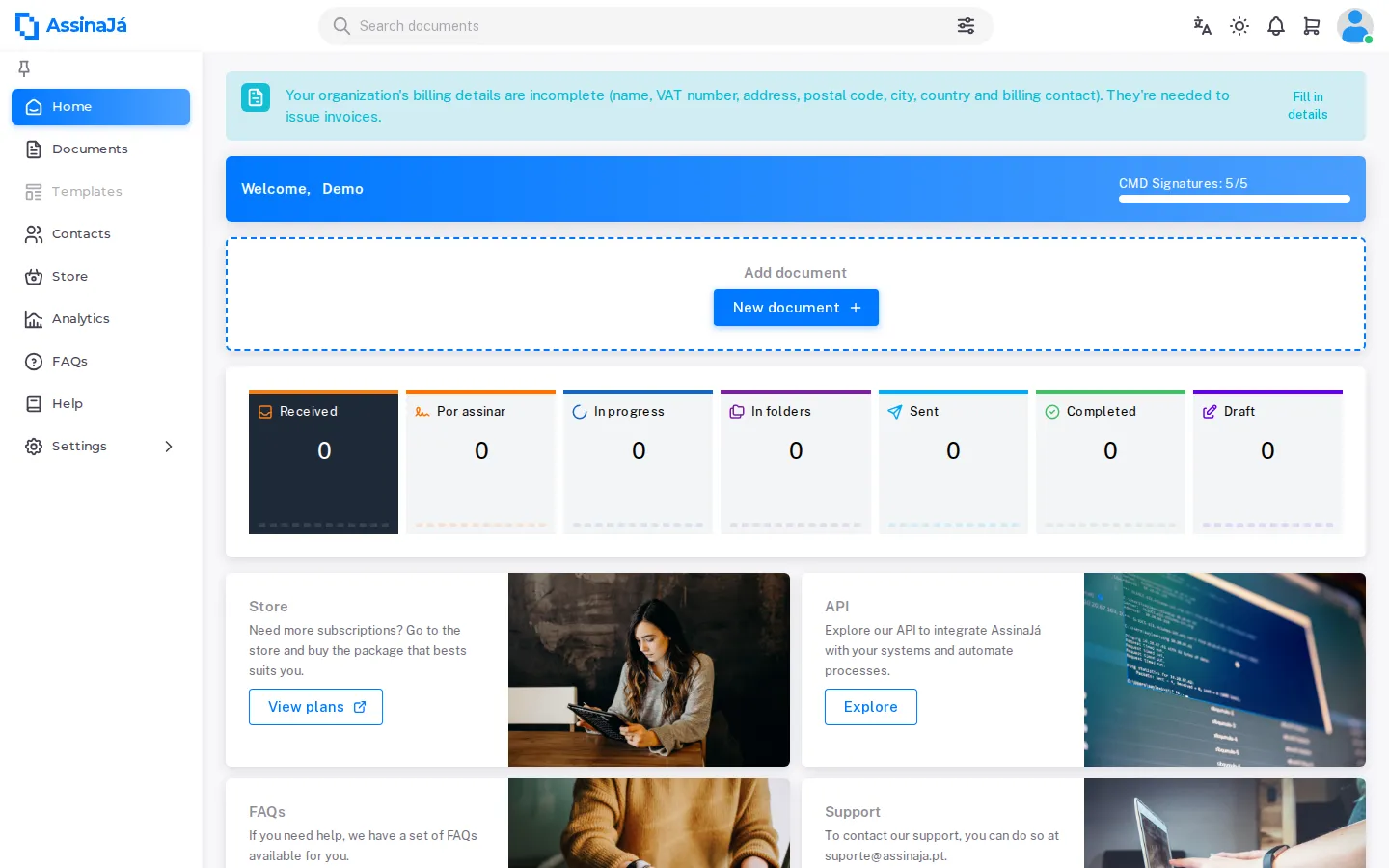
The Fill in details button takes you straight to this tab. The notice closes with the ×, but only until you next open the page — it goes for good once the seven required fields above are filled in (it is the same check that blocks a purchase).
Only people who can Manage billing — by default, the Owner and the Administrator — see it. For everyone else it would make no sense: they would be sent to a card they cannot change.
The moment this catches you out
Section titled “The moment this catches you out”If you have not filled them in, your first purchase in the Store does it for you — a dialog opens before payment:
Complete your billing details to continue
We need this to issue the invoice for your purchase. It is kept for future purchases.
With some of it already there, the dialog says what is missing — “{n} fields are missing. We have pre-filled what we already had.”
And if the person buying is neither Owner nor Administrator, they are not left guessing:
You cannot edit these
Billing details are missing. Ask your organisation’s Owner or Administrator to fill them in under Settings → Organisation → Data.
The other Organization tabs
Section titled “The other Organization tabs”Settings → Organization has five tabs, and not everyone sees all of them:
| Tab | Who sees it | |
|---|---|---|
| Data | Everyone | This page |
| Users | Everyone; the member list, only the Owner and the Administrator | Invite people to your organisation |
| Permissions | Owner and Administrator | Roles and permissions |
| Ownership | Owner only | Transfer the organisation |
| Audit | Owner and Administrator | A record of access made on behalf of other users |