Sign in
The sign-in screen leads with external accounts — Sign in with Microsoft and Sign in with Google — followed by the or continue with email divider. Below that is the usual form: Email, Password, the Remember Me checkbox, and Sign in. On the sign-in page the form is always visible; there is nothing to expand.
Below it are Forgot Password? and, for anyone without an account, New on our platform? with Create an account.
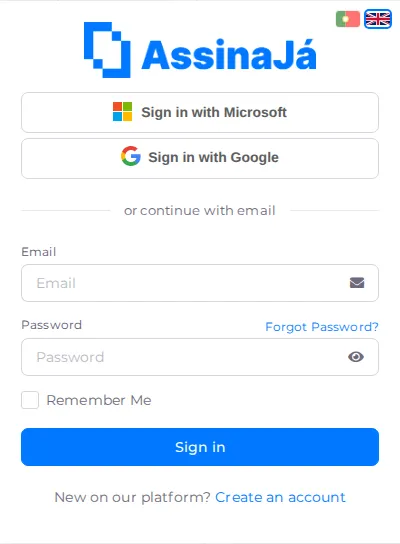
Signing in with a Microsoft or Google account
Section titled “Signing in with a Microsoft or Google account”The external-account buttons come first on purpose: they use the Microsoft or Google account you already have and need no separate AssinaJá password. Which ones appear depends on the providers enabled in the environment; the order is always Microsoft, then Google.
An account created that way may have no local password — see If you signed up through an external provider.
Creating an account
Section titled “Creating an account”Registration follows the same logic, external account first. Under the heading Create your account with: sit Create account with Microsoft and Create account with Google — one click and the account exists, with that account’s email already confirmed.
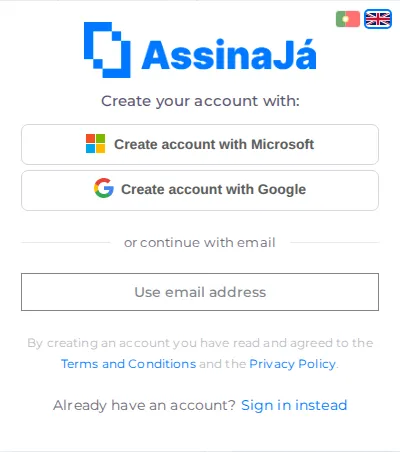
If you would rather use email, below the or continue with email divider is the Use email address button. Only after you press it does the form appear: Email address, Password, Confirm password and Create account. If you arrived through an invitation, or the server has something to point out in the form, it is already open.
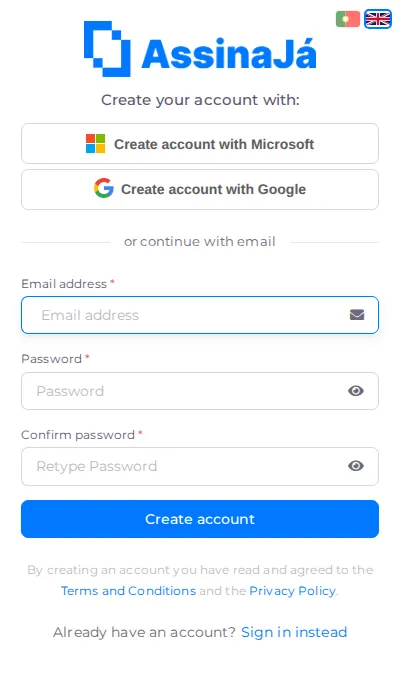
At the foot of the page, in small print:
By creating an account you have read and agreed to the Terms and Conditions and the Privacy Policy.
There is no box to tick — creating the account is the acceptance. The texts can be read beforehand through the links in that sentence, and afterwards under Review the terms you accepted.
Changing language
Section titled “Changing language”At the top of the card are two flags, Portuguese and British. They set the language of these account pages, and the choice follows you through to the end of signing in.
The email has to be confirmed
Section titled “The email has to be confirmed”An unconfirmed account cannot sign in, even with the right password. That is why the error message covers both at once:
Invalid login attempt. Please confirm your email.
The same message appears for a wrong password and for an unconfirmed email — on purpose, so strangers cannot learn which addresses have accounts. If you have just registered and cannot get in, look for the confirmation email before assuming the password is wrong.
Three attempts and the account locks
Section titled “Three attempts and the account locks”After 3 failed attempts, the account locks for 5 minutes:
Locked out
This account has been locked out, please try again later.
There is nothing to do but wait — contacting support does not speed it up. Five minutes later the count restarts. If you are unsure of the password, use Forgot Password? on the second attempt rather than spending the third.
The second step
Section titled “The second step”The right password is not enough: next, the application asks for a six-digit code sent to your email, on the Confirm it’s you screen. It is not an option — it is on for every account with a password. The screen, resending, and what to do when the code does not arrive are in Two-step verification.
If the account is new
Section titled “If the account is new”On a first sign-in you are sent to How will you use AssinaJá?, where you choose between Create a new organisation and Join my company’s organisation. See Create your account.