Create an API key
API keys let another system drive AssinaJá — your ERP creating documents, or an AI assistant working through the MCP interface.
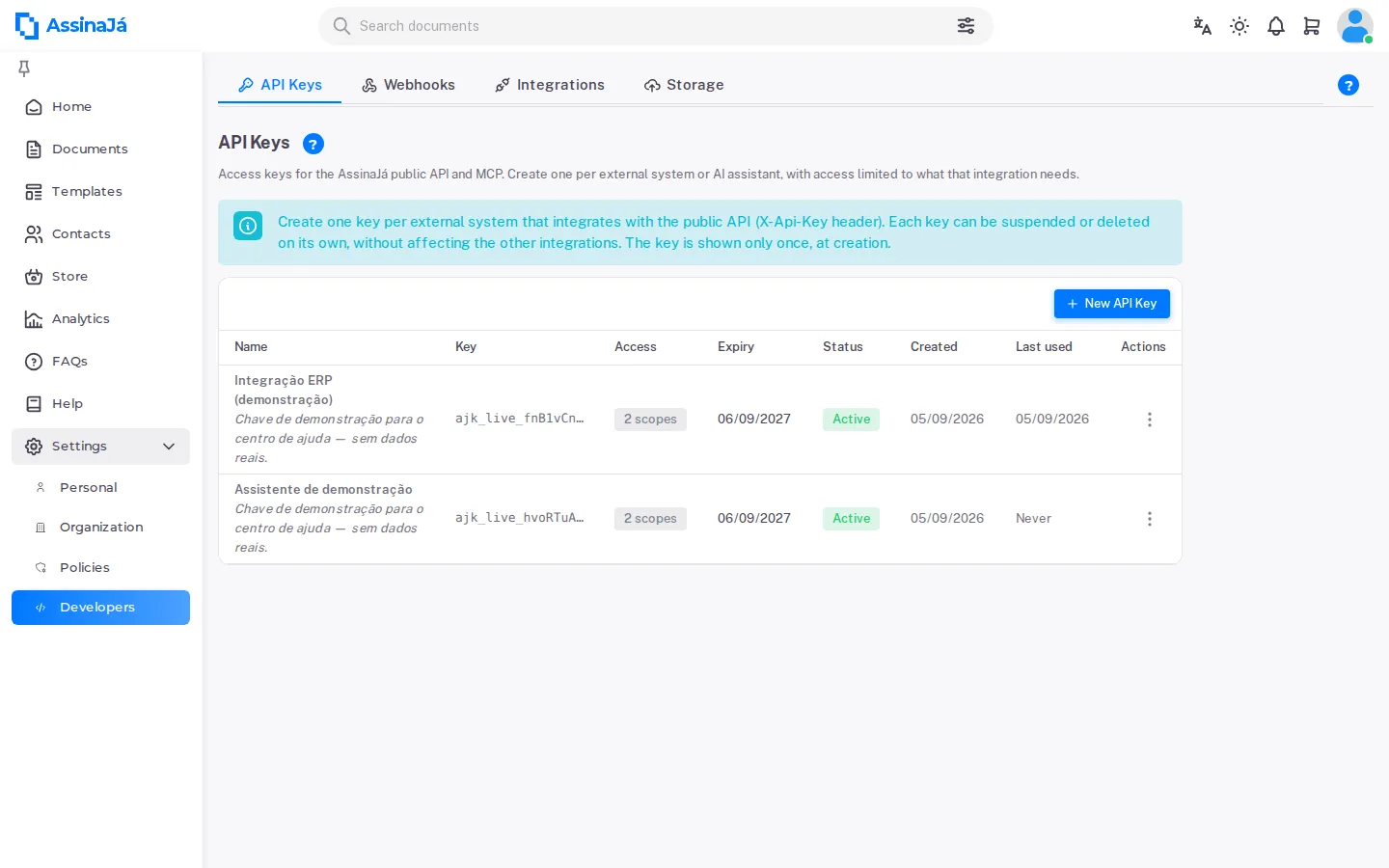
Access keys for the AssinaJá public API and MCP. Create one per external system or AI assistant, with access limited to what that integration needs.
Keys live under Settings → Developers → API Keys, and only the organisation’s Owner manages them. For any other role the tab opens but does not show the keys.
One key per integration
Section titled “One key per integration”Create one key per external system that integrates with the public API (
X-Api-Keyheader). Each key can be suspended or deleted on its own, without affecting the other integrations.
That is the reason for the rule: a shared key cannot be revoked without breaking everything that uses it. A key per system means you can cut off one integration and leave the rest running.
Create one
Section titled “Create one”Choose New API Key.
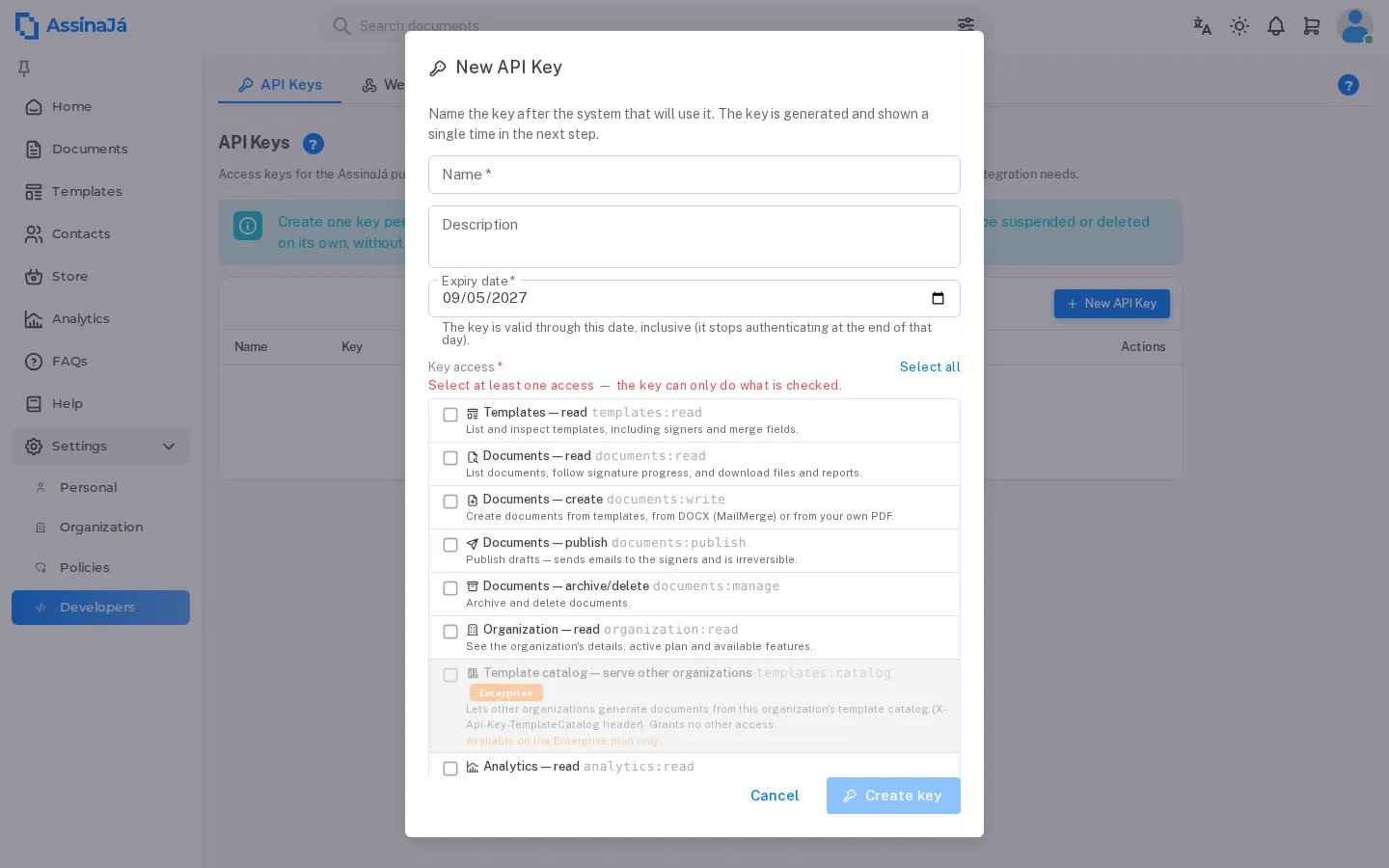
- Name — name it after the system that will use it, e.g. ERP Primavera.
- Expiry date — “The key is valid through this date, inclusive (it stops authenticating at the end of that day).”
- Access — tick only what this integration needs. At least one is required: “Select at least one access — the key can only do what is checked.”
- Create key.
Scopes
Section titled “Scopes”| Scope | What it allows |
|---|---|
| Templates — read | List and inspect templates, including signers and merge fields. |
| Documents — read | List documents, follow signature progress, and download files and reports. |
| Documents — create | Create documents from templates, from DOCX (MailMerge) or from your own PDF. |
| Documents — publish | Publish drafts — sends emails to the signers and is irreversible. |
| Documents — archive/delete | Archive and delete documents. |
| Organization — read | See the organization’s details, active plan and available features. |
| Analytics — read | Read the organization’s aggregated metrics: usage, signing funnel and adoption. Never per person. Only works if Settings → Policies → AI access to analytics allows it too. |
| Template catalog | Enterprise only — see below. |
Analytics — read also needs the organisation’s policy — see AI access to analytics.
The template catalogue scope
Section titled “The template catalogue scope”Template catalog — serve other organizations is different in kind from the others:
Lets other organizations generate documents from this organization’s template catalog (
X-Api-Key-TemplateCatalogheader). Grants no other access.
It uses its own header and grants nothing else. It is Available on the Enterprise plan only.
Templates over the public API: two rules
Section titled “Templates over the public API: two rules”These are public-API rules, and they apply to any key that reads templates:
- The plan that counts is that of whoever serves the template, not the
caller’s. If the organisation that owns the catalogue does not have Templates
enabled, the five endpoints that consume templates answer
423 FEATURE_TEMPLATES_NOT_ENABLED. - Drafts do not exist as far as the API is concerned. They are absent from the
listing, and asking for one’s detail returns
404. Publish the template before integrating against it.
Managing keys
Section titled “Managing keys”The list shows Name, Key, Access, Expiry, Status, Created and Last used — the last reading Never for a key that has never authenticated. That column is the quickest way to spot a key nobody uses.
| Action | Effect |
|---|---|
| Edit | Change the name, expiry or scopes |
| Rotate key | Issue a new secret for the same integration — see below |
| Suspend | “While suspended, the key no longer authenticates until it is reactivated.” |
| Activate | Re-enable a suspended key |
| Delete | Permanent |
A key’s Status is Active, Suspended or Expired.
Rotating a key
Section titled “Rotating a key”When you lose a key, or suspect it has been exposed, you do not have to delete it and reconfigure the integration from scratch. Rotate key opens Rotate the key — “A new key is issued for this integration. Name, access, expiry and connected AI assistants stay the same; only the secret changes.” — and asks when The current key stops working:
| Option | When to use it |
|---|---|
| Now — use this if the key may have been exposed | “The integration using the current key can no longer authenticate the moment you rotate.” |
| In 1 hour — time to replace it in the system that uses it | The default: both keys work for an hour. |
| In 24 hours | The same, with a day of slack. |
The new key is shown once, as on creation — Key rotated, with “The previous key keeps working until {date}. Replace it in the system that uses it before then.” or, if you chose now, “The previous key has stopped working.” In the list the key then shows Rotated on {date} and, while the overlap lasts, “The previous one works until {date}”.
An Expired key cannot be rotated — “Expired: create a new key instead of rotating it.”
Being told when something happens
Section titled “Being told when something happens”For your system to be told when something happens to a document, instead of having to keep asking, see Receive webhooks.
Related
Section titled “Related”- Receive webhooks
- Roles and permissions — API keys and webhooks are Owner only; Integrations and Storage, Owner and Administrator
- Plans, credits and extras